Workspaces
Workspaces group related tables and control who can use them. A workspace can represent a department, client portal, internal tool, or business process.
Your home screen
When you sign in you land on your home screen: every workspace you belong to, shown as a card with its tables, grouped by account.
- Favourites — the full-width first card. Open its menu (the dots on the card) and choose Manage to pick the tables you use most for one-click access from anywhere, or Reorder to drag them into the order you like.
- Recent — the strip across the top lists tables you opened recently, so you can jump straight back in.
- Arrange workspaces — account owners can open the account menu (the dots beside the account name) and choose Arrange Workspaces to drag cards into the order they prefer. The order is shared with everyone in that account.
- Collapse — from a workspace card's menu, Admins can Collapse workspaces you rarely use. Collapsed workspaces tuck into a "Collapsed" section at the bottom of the home screen but stay fully searchable and aren't removed. Choose Show on Home to bring one back.
A workspace card's table list scrolls if it's long, and a red triangle on a card or table marks a workspace or table whose automations have errored (Admins only).
What workspaces control
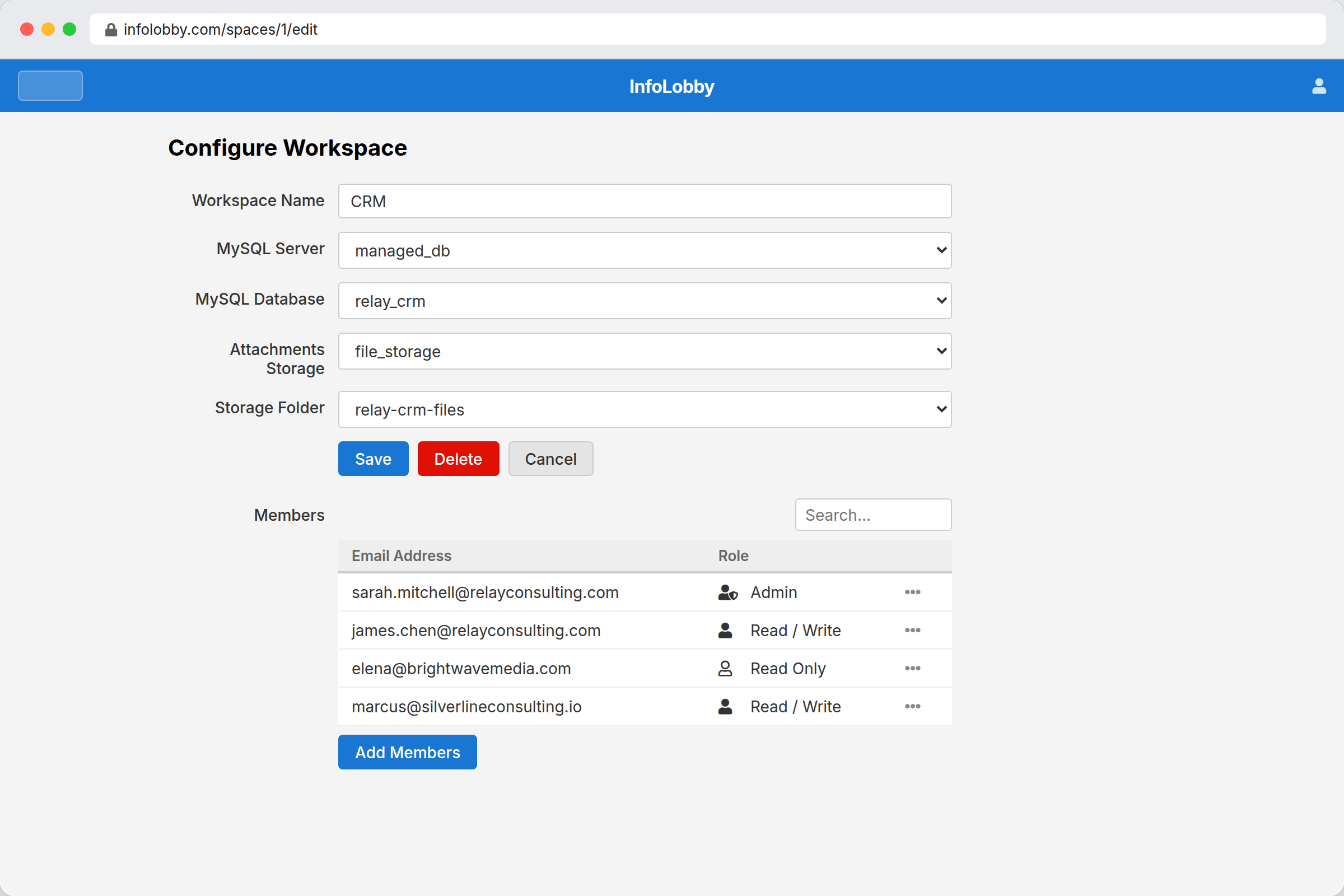
- Which tables users can access
- Which database the tables use
- Which storage connection file fields use
- Who can read, edit, or administer the workspace
Roles
| Role | Can view | Can edit records | Can manage workspace |
|---|---|---|---|
| Read Only | Yes | No | No |
| Read & Write | Yes | Yes | No |
| Admin | Yes | Yes | Yes |
Invite people
Open workspace settings, click Add Members, and choose a role. You can pick people you already work with from the search dropdown (it covers users in your other workspaces and anyone previously invited to them), paste fresh email addresses into the textarea, or both at once. Existing InfoLobby users get access immediately. New email addresses receive an invite and can join as guests.
The members list itself shows username, email, and role, and is sortable by clicking the column headers.
Guests can work inside shared workspaces. They do not get their own trial workspace, managed database, or managed storage unless they create their own account later.
New workspaces start with the database and storage choices from your newest existing workspace when available.